Survive The Slope! Mobile & Tablet Tips
Touch-first habits that keep bone health intact when you are not on a keyboard.
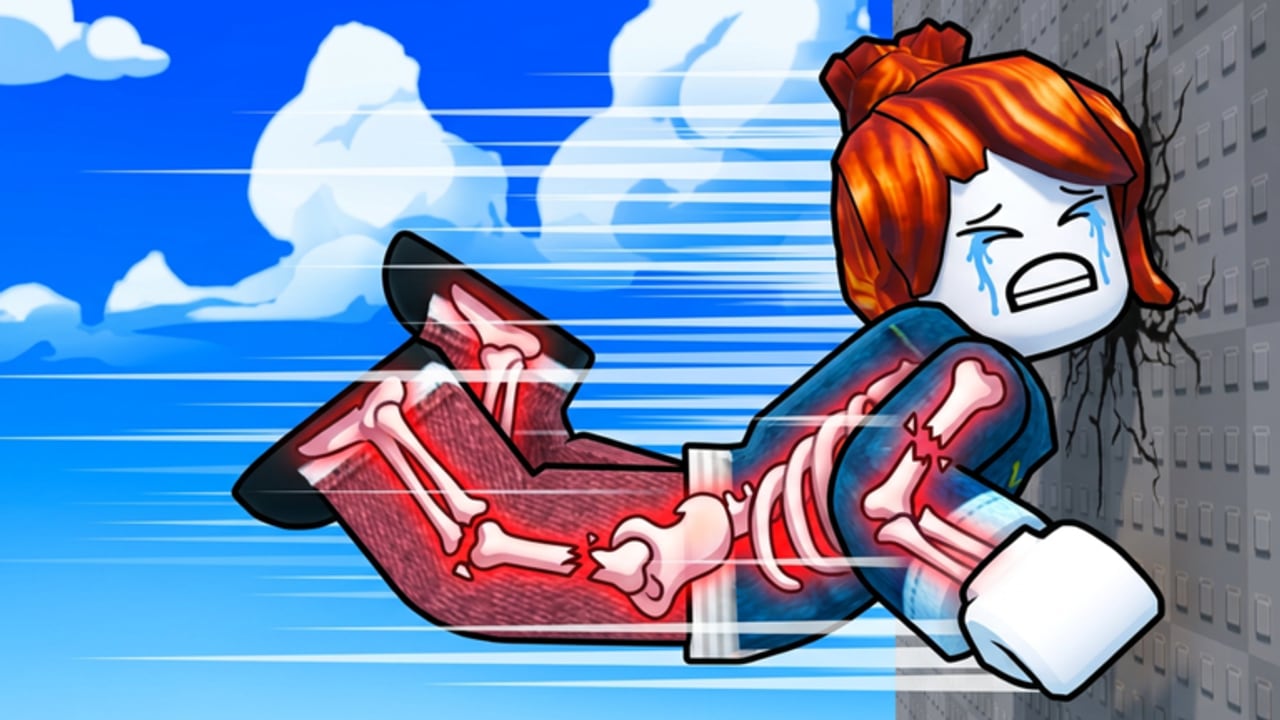
Survive The Slope! supports Desktop, Mobile, and Tablet, and a huge share of players learn the StarBite Bones physics slide on a phone first. This guide is the touch-device companion to Controls and Getting Started. It focuses on grip, orientation, UI clutter, network stability, and the mistakes that make mobile runs feel “unfair” when the real problem is input noise.
The fantasy does not change on a smaller screen: slide downhill, dodge obstacles, protect bones, bank cash from distance, buy upgrades, and chase the leaderboard in servers capped at six players. What changes is how easily a heavy thumb or a notification popup turns a clean line into a fracture chain.
Why mobile feels harder (and when it is not)
Touch players often blame physics. Sometimes latency or thermal throttling is real. More often the pattern is:
- Portrait play crops the slope ahead.
- A sweaty thumb oversteers into walls.
- Oscillation after the first scrape ends the run.
- The player concludes “PC is required.”
Tablet users sit between phone and PC: more visual runway, but still touch precision. Treat tablet like a large phone with better foresight—not like a mouse.
If your deaths are mostly early scrapes, fix device habits before you dump cash into raw speed. Pair this page with Bones & Damage so you stop spending integrity on recoverable wiggles.
Orientation and grip
Landscape first
Play Survive The Slope! in landscape whenever you can. A wider frustum lets you read the next hazard cluster earlier, which is half of high-distance play. Portrait is fine for a quick lobby visit; it is a handicap for push attempts.
Grip patterns that work
| Grip | Best for | Watch-outs |
|---|---|---|
| Two-hand hold, one steering thumb | Most phones | Do not let the non-steer hand cover UI |
| Device on a table, light fingertip | PB attempts | Watch for accidental palm taps |
| Tablet propped at a slight angle | Long sessions | Re-check brightness and glare |
Avoid constantly switching hands mid-slope. Consistency beats “fresh finger” myths once speed rises.
Touch steering discipline
Mobile steering in this genre usually means a drag zone, on-screen left/right affordances, or (optionally) gyro. Confirm the live labels in Settings—this wiki will not invent a fake screenshot that may be outdated after Items or Races patches.
Community guidance for touch:
- Prefer short taps and micro-drags over holding a hard turn until you bounce.
- After any hit, freeze inputs for a beat, then re-center. Panic swipes create chain crashes.
- If gyro fights your thumb, disable gyro. One clean input channel beats two arguing ones.
- Clean the glass. Oily swipe noise feels like rubber-banding.
- Lower camera / look sensitivity if the world feels “swimmy” while you steer.
Deep binding notes live on Controls. Come back here for session hygiene; go there when you need the device matrix.
UI, notifications, and visual clarity
Roblox chrome, shop badges, and chat can steal edge pixels you need for hazard silhouettes. Before a serious run:
- Mute or disable lock-screen notifications that overlay the game.
- Close picture-in-picture video and floating chat bubbles.
- Dim non-essential HUD if the experience or Roblox client offers UI scale options.
- Raise brightness just enough to see dark obstacle edges without washing out contrast.
- Keep the Codes / Shop / Settings icons reachable without covering your steer zone—especially after updates rearrange lobby buttons.
If a pass purchase or spin UI is open, finish the menu in the lobby. Mid-run menu accidents on mobile are a classic personal-best killer.
Network, heat, and frame pacing
Physics-slide games punish micro-stutters. On mobile:
- Prefer stable Wi-Fi over congested cellular when pushing distance.
- Avoid playing while the phone is thermally throttling after charging or heavy camera use—cool the device for a few minutes.
- Lower Roblox graphics quality if frame time spikes; a steadier 30–60 feel beats a prettier slideshow.
- Do not run heavy downloaders in the background during a push block.
A “physics bug” report is sometimes just thermal lag. Warm up with two short slides after any settings change so you feel today’s latency before a scored attempt.
Session structure for phones and tablets
Copy this lightweight plan (adapt freely):
- Lobby check — Settings bindings, orientation lock, notifications off.
- Warm-up ×2 — survival only; no ego distance.
- Farm block — bank cash with safe lines; fund one upgrade using ideas from Cash Farm and Upgrades.
- Push ×1–2 — apply High Distance Tips habits.
- Stop on tilt — thumb fatigue is a real fail state on touch.
Mobile grinders who skip warm-ups often burn their best focus on a first-minute wall clip.
Mobile-specific death patterns
Watch for these repeating autopsy notes:
- Edge blindness — portrait or thick bezels hide a lateral prop until contact.
- Thumb oscillation — alternating left/right every frame into a corridor.
- Notification flinch — a banner appears; you swerve; bones pay.
- Menu mis-tap — opening shop mid-slope on accident.
- Gyro fight — device tilt plus thumb drag double-steers into a rail.
Write one sentence after each death. If three deaths share a device cause, fix the device before the shop.
Passes and mobile value
Official passes remain Auto Spin (49 Robux), 2x Cash (149 Robux), and 2x Health (149 Robux). On mobile, 2x Health often feels strongest for learners because touch mistakes are common; 2x Cash shines once you can finish medium runs consistently. Auto Spin is pure QoL if you open spins every session. Rankings and caveats: Game Passes tier list.
Do not buy “mobile-only private scripts.” Touch does not make executors safer—see Scripts and Script Safety.
After Items and Races patches
New items and friend races can add UI chrome or social pressure. On phone:
- Re-open Settings after the Items update window and the Races weekend framing.
- Learn new pickups in landscape on low-stakes farms before racing friends.
- Warn race partners if you are on touch so expectations stay fair.
Related pages
- Controls — PC / mobile / tablet expectations
- Getting Started — first-hour plan
- Cash Farm — efficient distance income
- High Distance Tips — PB habits
- Guides Hub — full tutorial map
Frequently Asked Questions
Quick answers for Survive The Slope players.
Is Survive The Slope! playable on mobile?
Yes. The experience supports Desktop, Mobile, and Tablet. Landscape play and light touch steering close much of the gap with PC.
Should I use gyro steering on phone?
Only if it feels stable. If gyro fights your thumb, disable it in Settings and steer with touch alone.
Why do I oversteer more on mobile than on PC?
Heavy held swipes and oscillation are common on touch. Use micro-corrections, clean the screen, and stabilize after every hit.
What settings should I check before a push run?
Lock landscape, confirm steer bindings, mute notification overlays, and lower graphics if frame pacing stutters.
Which game pass helps mobile players most?
Many learners prefer 2x Health (149R) because touch mistakes are frequent. Switch priority to 2x Cash once medium runs are consistent.
Where should I go after this guide?
Confirm bindings on Controls, then practice income with Cash Farm and survival habits from Getting Started and Bones.